 OYOM
Blog
5 Google listing fixes to make before Thanksgiving
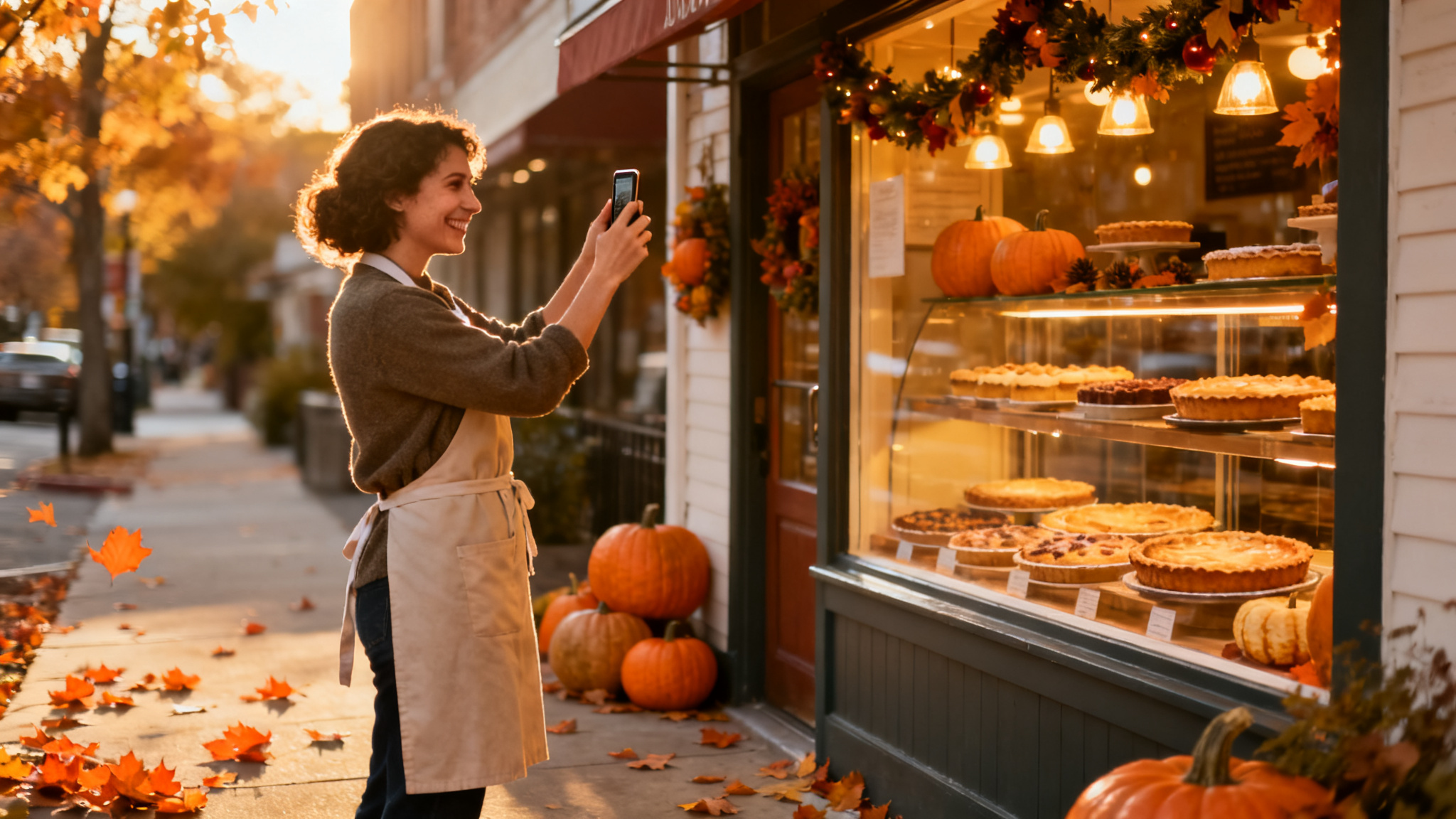
Thanksgiving is Thursday, November 26, and Small Business Saturday is two days later. Before the rush, spend 20 minutes on your Google listing so nobody drives to a locked door, and so the people searching find a reason to pick you.
1. Set your holiday hours today
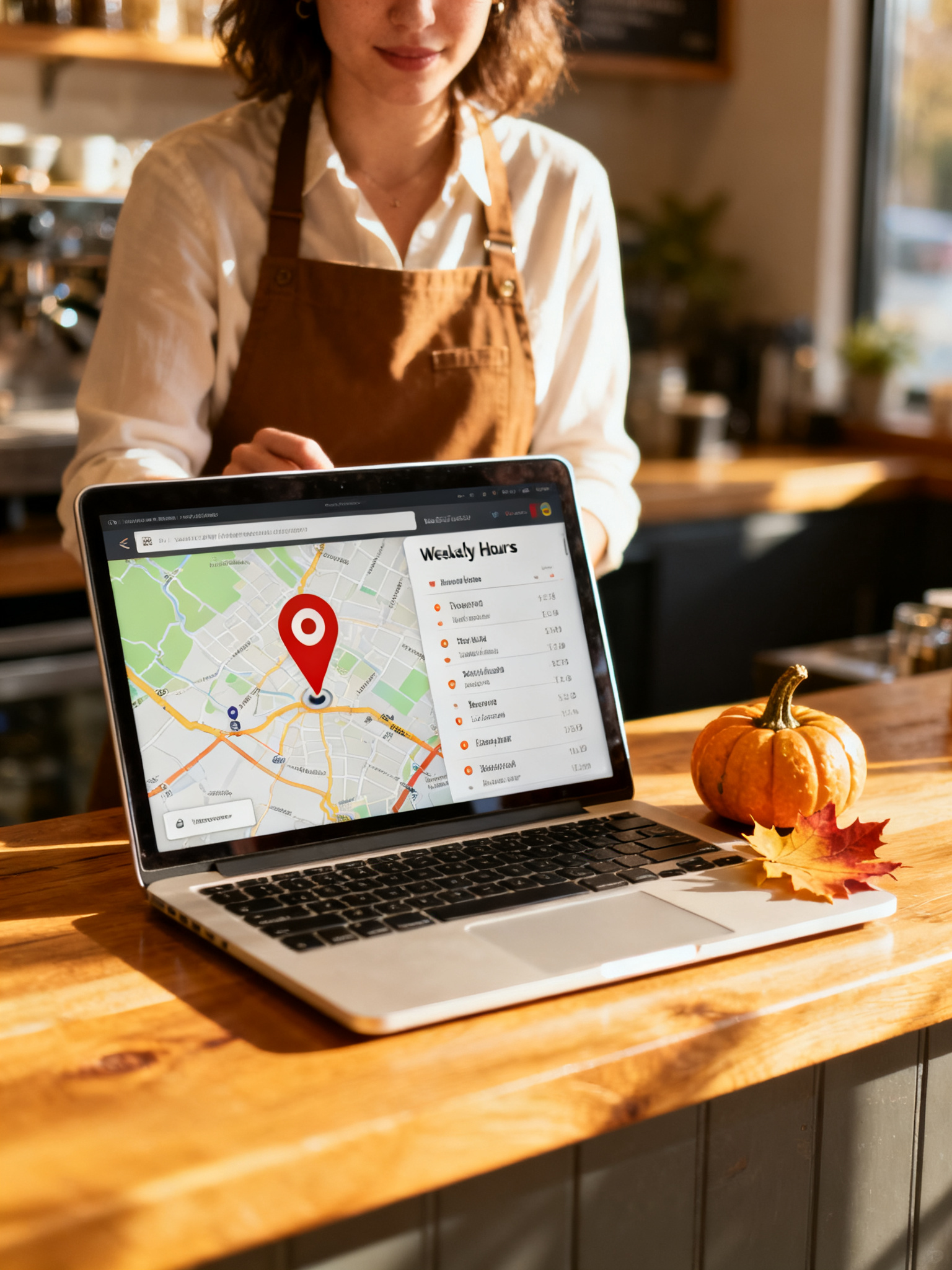
This is the single most useful thing you can do this week. In your Google Business Profile, go to Edit profile → Hours → Special hours, pick the date, and either leave "Closed" checked or type your hours. That's it. Google's help page walks through it.
Three things most owners miss:
- Confirm the holiday even if your hours don't change. Google suggests confirming hours for official holidays even when they match your normal ones, because "this makes it clear to customers that your special hours are accurate."
- Special hours only change those dates. Your regular hours stay the same, so you don't have to remember to switch anything back.
- Closing for a week or more? Special hours are for up to six days in a row. For 7 days or longer, Google says to mark the business "Temporarily closed" instead.
Do it for the whole stretch now: Thanksgiving, Black Friday (Nov 27), Small Business Saturday (Nov 28), Christmas Eve, Christmas, New Year's Eve and New Year's Day.
Why it matters: these hours show on Google Maps and in the local results, and searches with "open now near me" in them have grown steadily since 2013. A wrong answer there costs you a customer, and maybe a review.
2. Post your holiday offer on Google (not just Instagram)
Your Google profile has its own posts, and most small businesses never use them. There are three kinds: Updates, Offers and Events.
- An Offer needs a title and dates. It gets a "View offer" button on its own, and you can add a coupon code and terms. Perfect for "15% off gift cards through Nov 30."
- An Event needs a title plus start and end dates. Good for a holiday open house or a Small Business Saturday sip-and-shop.
- Old posts get archived after 6 months unless you set a date range. Keep posting fresh ones.
All of this is on Google's posts page. Keep the words simple: what it is, until when, how to get it.
3. Add fresh, real photos
People pick between three listings in a few seconds, and photos decide a lot of that. Google's photo tips are short and practical:
- At least three outside photos, so people recognize your door when they pull up.
- At least three photos of what you sell.
- In focus, well lit, and no heavy filters. Google asks for photos with "no significant alterations or excessive use of filters or AI," so keep your listing photos real and straight from your phone.
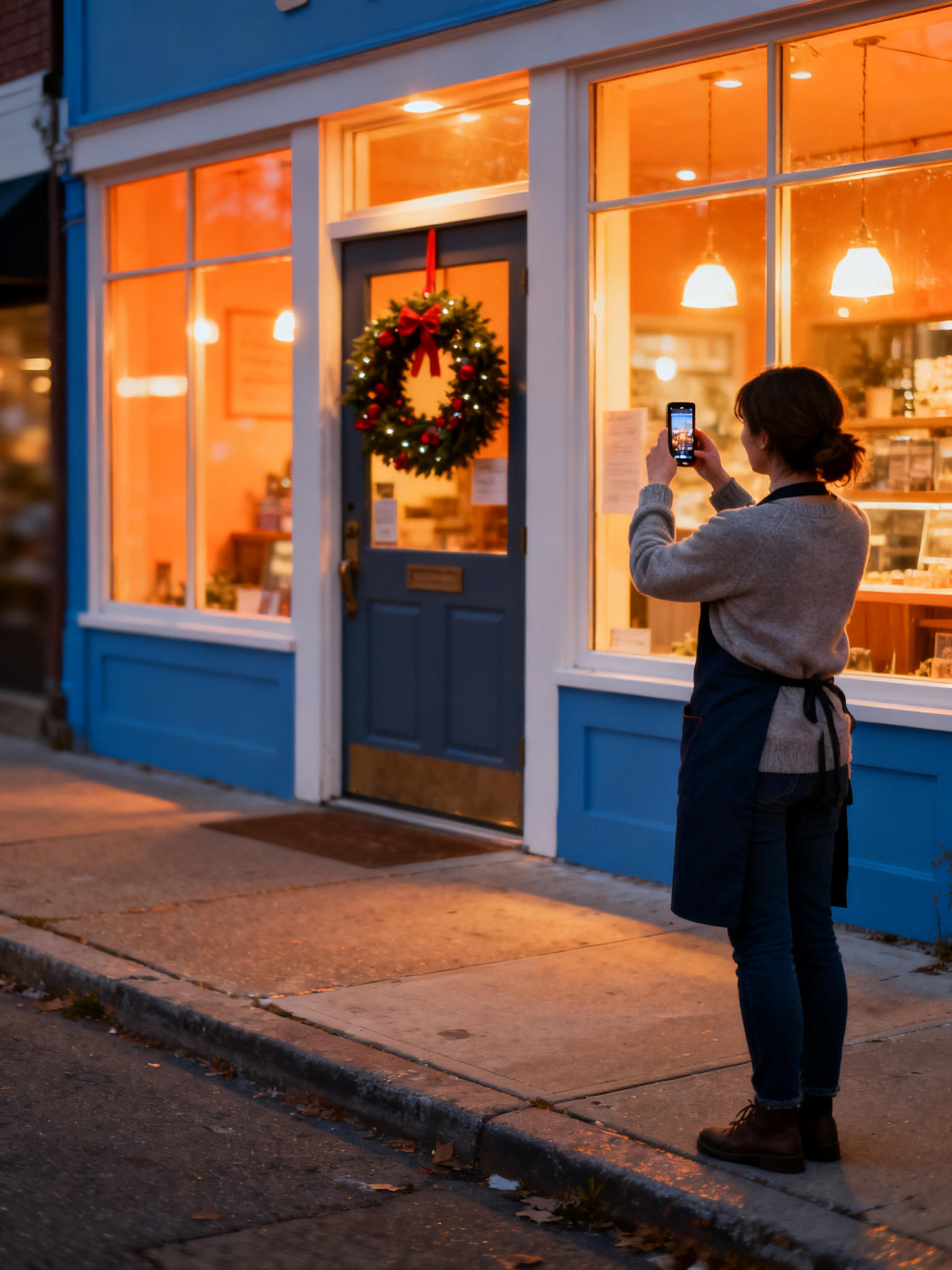
A quick holiday set: your decorated front window, your team behind the counter, and your best-seller up close.
4. Answer your last few reviews
Before the busy weeks, reply to every review from the last month, good and bad. Thank people by what they bought ("Glad the pecan pie made it to the table!"). For a bad one, stay calm, keep it short and offer to fix it offline. The next person reading your listing is judging the reply as much as the review.
5. Then say it everywhere else
Your Google listing handles the people already searching. Your social posts reach everyone else. Use the same message in both places: your holiday hours, your one offer, and the day it ends. This is where a designed ad helps, on Instagram, Facebook, a flyer by the register or a text to your regulars.
Copy these prompts
Swap in your own details. The businesses below are made up:
- "Cozy image ad for Butterlark Bakery: a golden pumpkin pie and a tray of cinnamon rolls on a rustic counter by a frosted window. Headline: 'Pie orders close Nov 23.' Small line: 'Closed Thanksgiving Day, open Black Friday 7am.'"
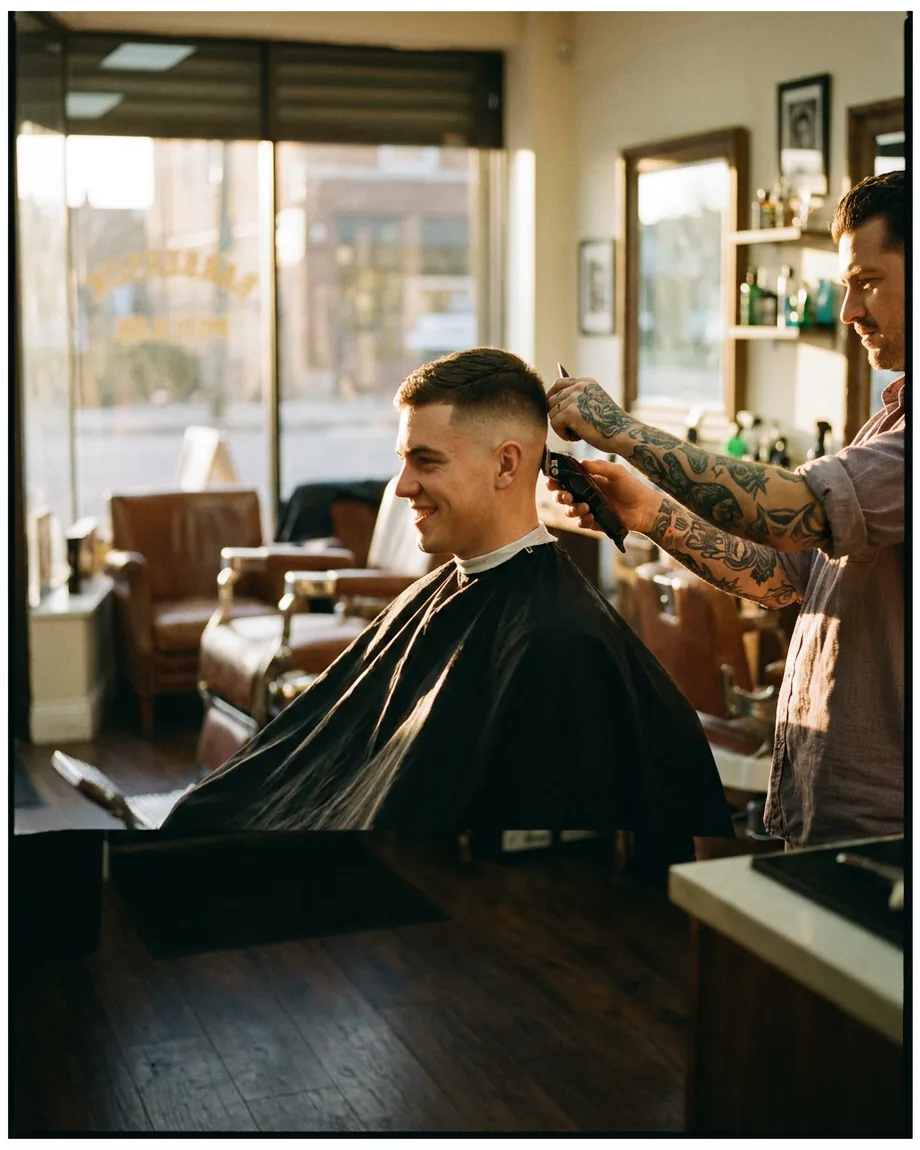
- "15-second video for Copperfern Salon: a stylist finishing a glossy blowout, the client smiling in the mirror, then a gift card in a little box with a bow. End on 'Gift cards 15% off through Nov 30.'"
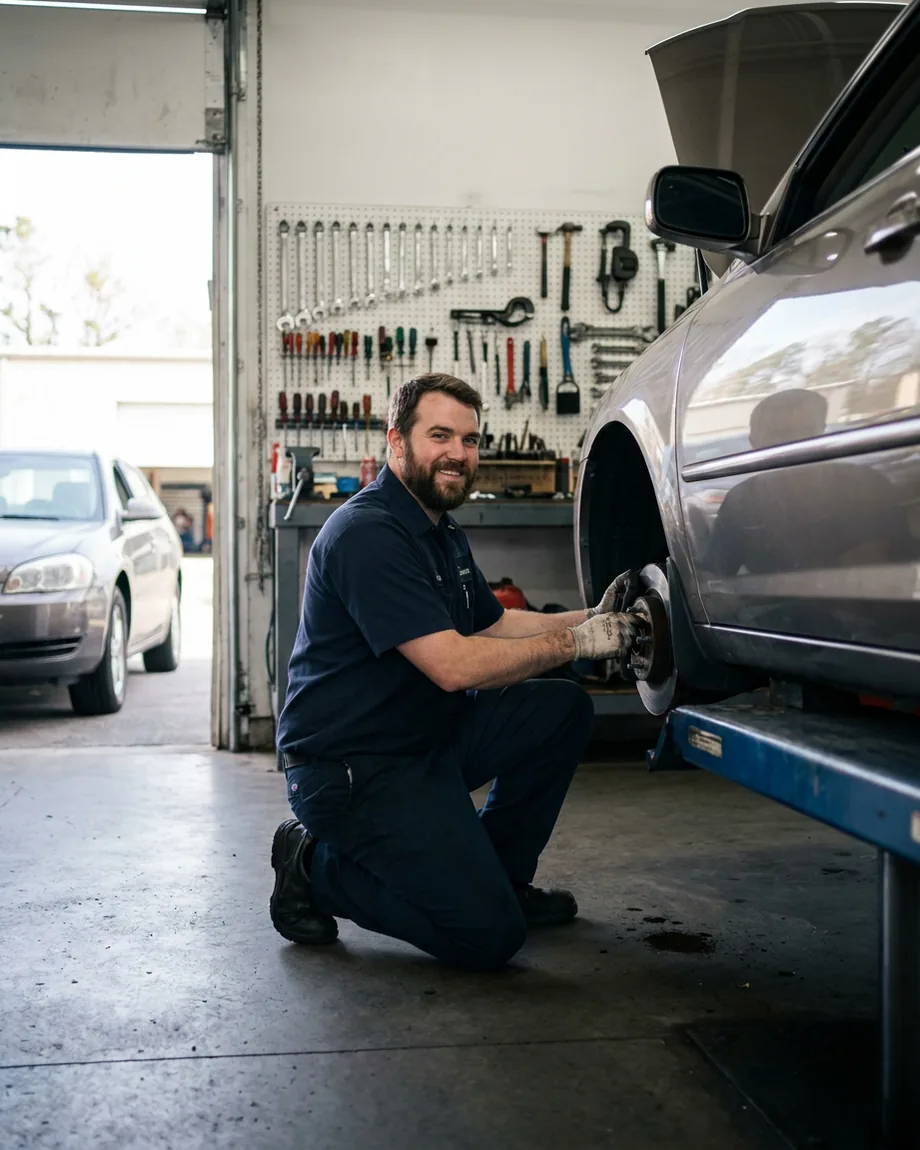
- "Image ad for Gravelcreek Auto: a mechanic checking tire tread before a road trip, autumn trees outside the bay door. Headline: 'Driving for Thanksgiving? Free tire check this week.'"
Make yours in minutes
Your hours and offer are set on Google. Now paste one of these prompts into the OYOM.ai Studio to make the matching ad for social, and you'll see the plan and the exact price before you pay.